
How to Adjust Letter Spacing and Position in eXPerience 8 – Level Pilot
This guide will walk you through the various methods to adjust letter spacing and individual letter positioning within your text objects in eXPerience 8 embroidery software.
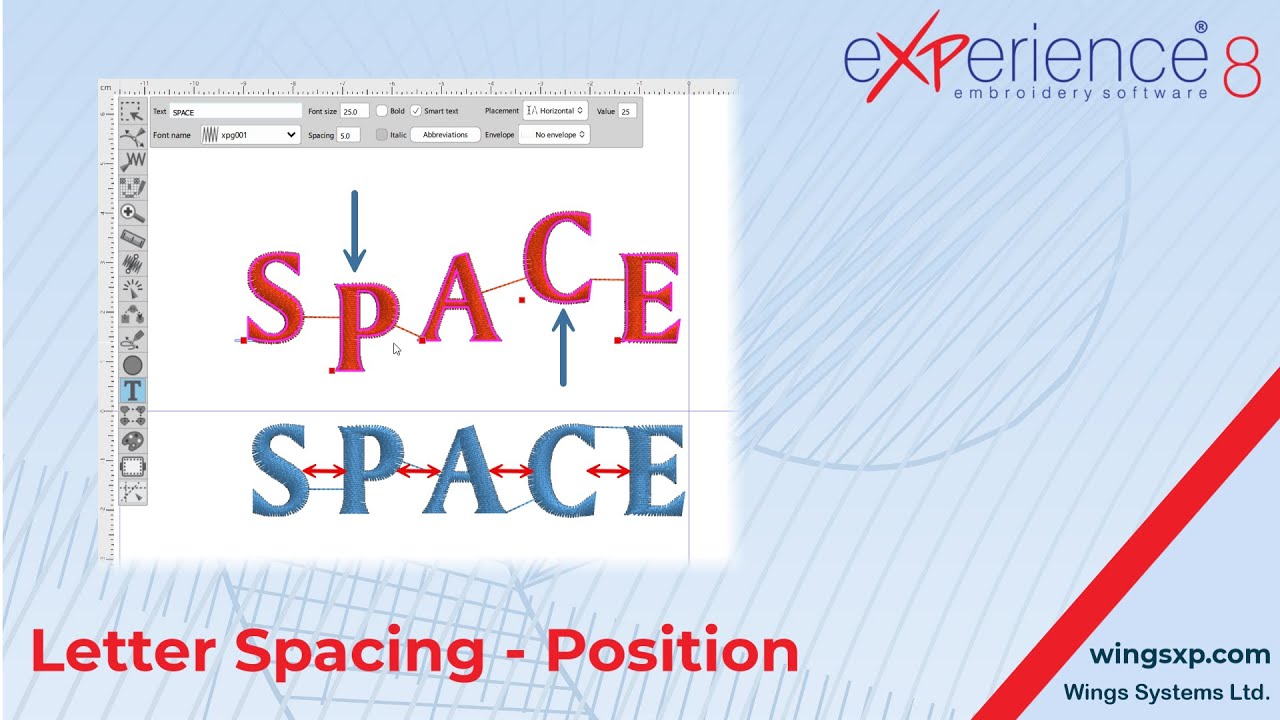
Understanding Basic Text Transformations:
Before diving into specific letter adjustments, remember that text objects in eXPerience 8 can be manipulated like any other standard object. This means you can:
- Rotate your text.
- Slant your text.
- Scale your text.
- Stretch your text.
Method 1: Adjusting Letter Spacing and Position using Text Options (Red Handles and Value Input)
This method allows for quick adjustments to individual characters and overall spacing.
- Add or Edit Text: Begin by either adding a new text object or selecting an existing one to enter edit mode.
- Utilize Red Handles for Individual Character Movement:
- When your text object is selected or in edit mode, you will see red handles associated with the text.
- Click and drag these red handles to move individual characters within the text object to your desired position.
- Adjust Distance Between Characters by Typing a Value:
- Within the text options or properties panel (usually accessible when text is selected or being edited), locate the setting for character spacing or distance.
- Type a numerical value into this field to uniformly adjust the distance between all characters in the selected text object.
Method 2: Adjusting Positioning and Spacing using the Node Editor
The Node Editor offers more precise control over the placement of individual characters.
- Select the Text Object: Click on the text object you wish to modify.
- Start the Node Editor: Access the Node Editor tool. The specific icon or menu item may vary, but it’s typically found in the main toolbar or by right-clicking the object.
- Manipulate Individual Character Nodes:
- Once the Node Editor is active for your text object, you will see individual nodes associated with each character.
- Click and drag these nodes to change the position of each character independently. This allows for fine-tuned adjustments to create custom layouts and spacing effects.
By utilizing these methods, you can effectively control the spacing and positioning of letters within your eXPerience 8 embroidery designs, ensuring your text appears exactly as you envision it.
eXPerience Facebook Page
Happy crafting and don’t forget to share your creations with us in the
eXPerience Facebook Page!







