Advanced Text Editing: How to Adjust Text Spacing and Character Placement
In eXPerience 8, you have complete creative control over lettering. Beyond standard object transformations (scaling, rotating, and slanting), you can fine-tune letter spacing, line height, and individual character placement.
Follow this step-by-step guide to master text positioning and spacing tools.
1. Standard Text Transformations
Before adjusting individual letters, you can transform the text object as a whole:
- Select your text object in the workspace.
- Use the bounding box handles to:
- Scale / Stretch: Drag corner or side handles to resize proportionally or non-proportionally.
- Rotate: Use the rotation handles to pivot the lettering to your desired angle.
- Slant: Use the skew handles to give the text an italicized or slanted look.
2. Adjusting Character Spacing and Placement
You can modify character placement directly on the workspace or with precise numerical values.
- Select the text object and open the Text Properties / Options panel.
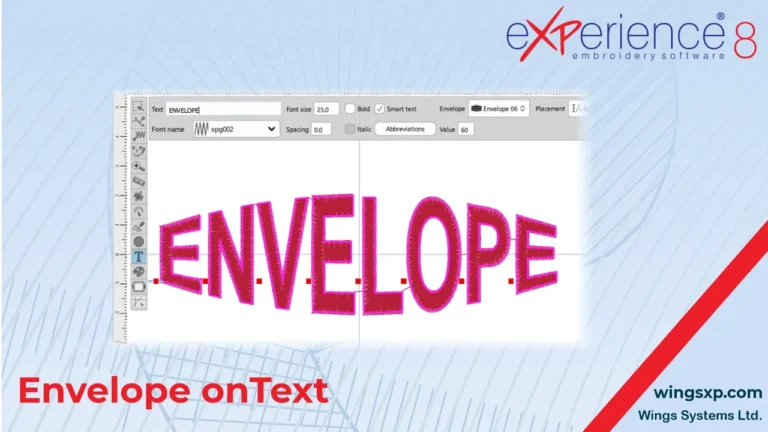
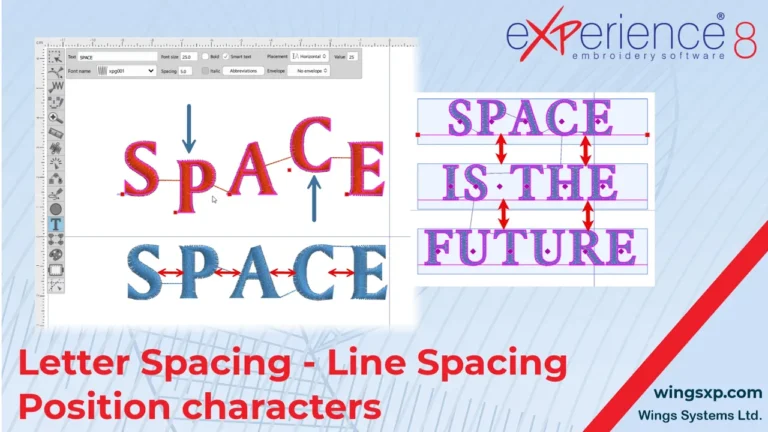
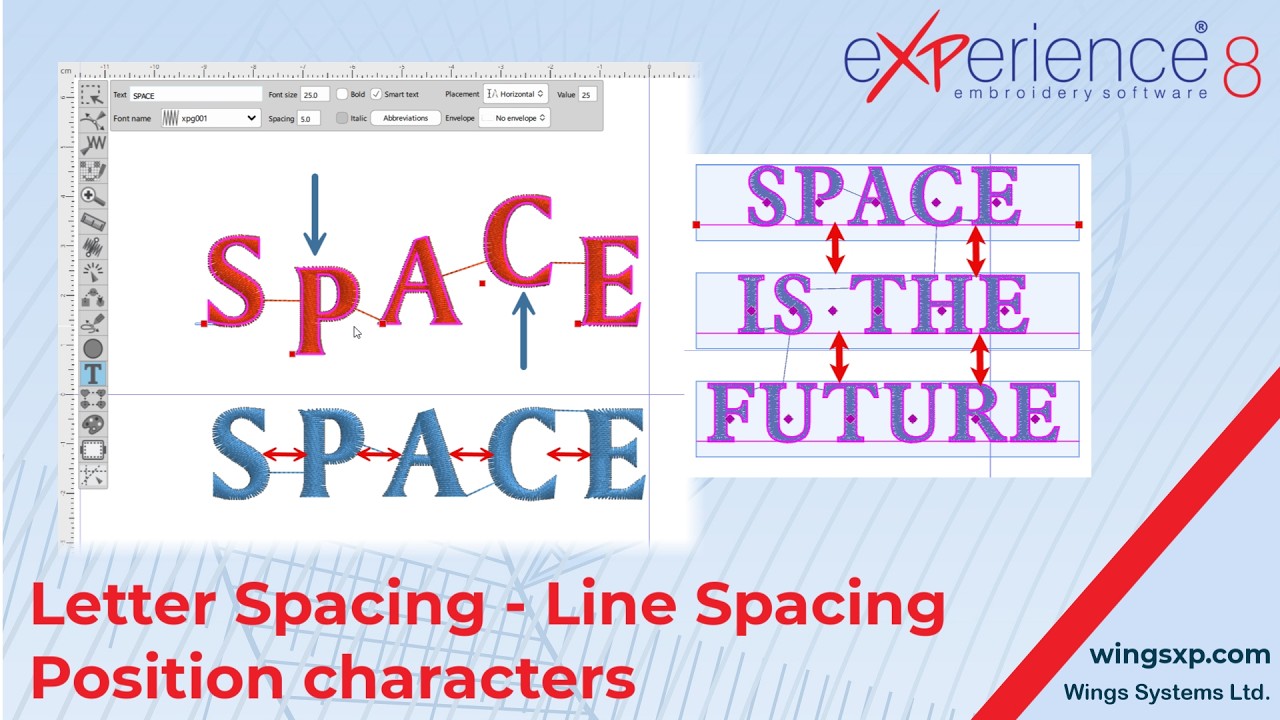
- Move individual characters: Click and drag the individual character handles directly on screen to shift specific letters.
- Set uniform character spacing: Enter an exact numerical value in the character spacing field to increase or decrease the distance between all characters uniformly.
Tip: Adjusting character spacing manually (kerning) is especially useful for script fonts to ensure connecting stitches flow naturally.
3. Creating Multi-Line Text and Adjusting Line Spacing (V Spacing)
Creating Multiple Lines
- Horizontal & Vertical Orientations: Press
Enteron your keyboard while typing to drop down to a new line. - On-Line Segment & On-Arc Orientations: The length of the drawn path serves as a boundary. When typed text reaches the end of the segment or arc, it will automatically wrap to the next line.
Adjusting Vertical Spacing Between Lines
- Select your multi-line text object.
- Locate the V Spacing (Vertical Spacing) field in the text properties bar.
- Adjust the spacing using any of these methods:
- Type a specific numeric value into the field.
- Hover your cursor directly over the V Spacing input box and use the Up/Down arrow keys on your keyboard.
- Hover over the field and scroll your mouse wheel up or down for real-time visual adjustments.
4. Advanced Positioning and Spacing with the Node Editor
For maximum precision over individual letter placement in Horizontal or Vertical text orientations, use the Node Editor.
- Select the text object and activate the Node Editor tool from the toolbar.
- Move an individual letter: Click directly on a character’s node handle and drag it to any position.
- Select multiple characters: Click and drag a selection box around multiple nodes to group them.
- Adjust multi-character spacing: Drag the selected nodes in your preferred direction to expand or compress the spacing between them.
- Center-point spacing adjustment: Hold down the
Shiftkey while dragging selected nodes. This expands or condenses the spacing evenly while locking the center point in place.
Quick Reference: Text Editing Shortcuts
| Action | Shortcut / Method |
| Quick Line Spacing Adjust | Hover over V Spacing + Scroll Mouse Wheel or Arrow Keys |
| New Line (Standard Text) | Press Enter |
| Multi-Letter Select | Activate Node Editor + Click & Drag selection box |
| Symmetrical Spacing | Hold Shift + Drag selected nodes in Node Editor |
eXPerience Facebook Page
Happy crafting and don’t forget to share your creations with us in the
eXPerience Facebook Page!