
How to Collect and Send Required Information for eXPerience Support
Reading Time: 2 minutes
If you experience any issues with your eXPerience software, please gather and send us the following information to help us diagnose and resolve the problem: Serial Number, Application Log, and System Information. Follow the instructions below to locate and attach each file.
USB or Software Key Serial Number
- The Serial Number of your USB or Software Key helps us identify your license. You can find it in the Help > About section of your eXPerience software.
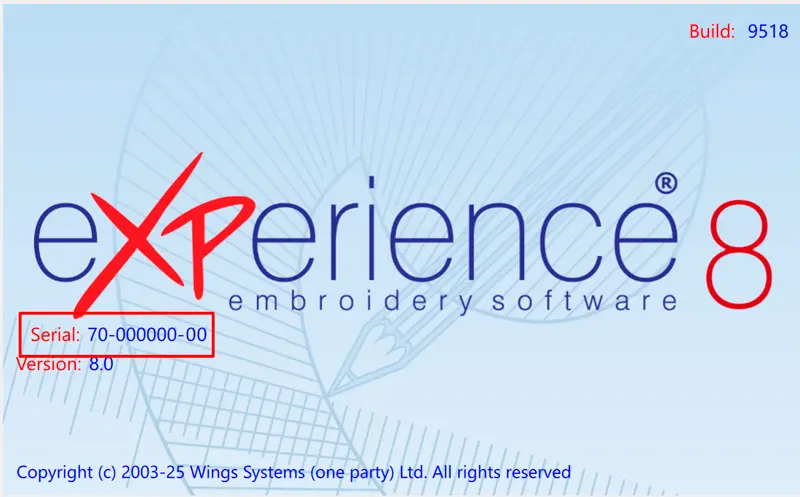
- Note: The Serial Number typically starts with “50-00…”, “60-00…”, or “70-00…”.
Collect the Application Log
For eXPerience on Windows:
- Open Windows Explorer by double-clicking the My Computer icon.
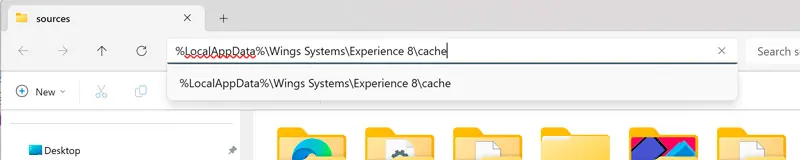
- In the address bar, paste the following path and press Enter:
For eXPerience 8
%LocalAppData%\Wings Systems\Experience 8\cache- In this folder, locate the file named Application.log.
- Attach the Application.log file to your email.
Generate the System Information File
- In Windows 11, 10, type System Information in the search bar and press Enter.

- In the System Information window, go to File > Save.
- Save the file as an .NFO file (System Information File).
- Ensure the .NFO file is at least 1 MB in size for it to contain the necessary details.
- Attach this .NFO file to your email.
Final Step: Email the Files
- Once you have collected the Serial Number, Application.log, and System Information .NFO file, attach these to an email and send them to our support team.
This information will assist us in troubleshooting your issue accurately. Thank you for your cooperation!
eXPerience Facebook Page
Happy crafting and don’t forget to share your creations with us in the
eXPerience Facebook Page!








