
Setting eXPerience to Use the High-Performance Graphics Card on Windows 11
Reading Time: 3 minutes
If your computer has two graphics cards (typically an integrated card and a more powerful dedicated NVIDIA or AMD graphics card), you may need to configure Windows 11 to use the NVIDIA/AMD card for eXPerience. This can improve the performance and stability of the software. Follow these steps to set eXPerience to run on your NVIDIA/AMD card.
Step 1: Open Graphics Settings in Windows 11
- Open the Settings app by pressing Windows + I on your keyboard.
- In the Settings window, select System in the left sidebar, then click Display on the right side.

- Scroll down and click on Graphics under the Related settings section.

Step 2: Add eXPerience 8 to the Graphics Settings
- On the Graphics page, you will see a list of installed applications. If eXPerience does not appear on this list, you need to add it manually.
- Under Add an app, choose Desktop app from the drop-down list,

- then click Browse.
- In the file explorer window, navigate to the location of the eXPerience executable:
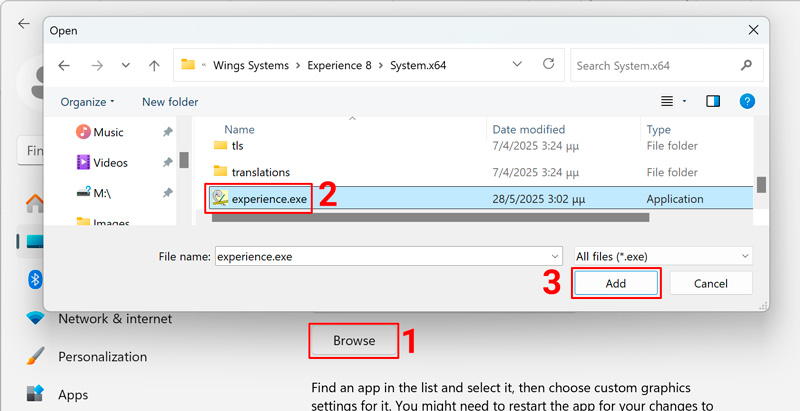
For eXPerience 8
C:\Program Files\Wings Systems\Experience 8\System.x64\experience.exe- Select the experience.exe file and click Add to include it in the Graphics settings list.
Step 3: Configure eXPerience to Use the High-Performance NVIDIA/AMD Graphics Card
- After adding eXPerience to the list of manageable apps, locate it on the Graphics settings page, click on it, and select Options.
- In the Graphics preference dialog that appears, you should see two options:
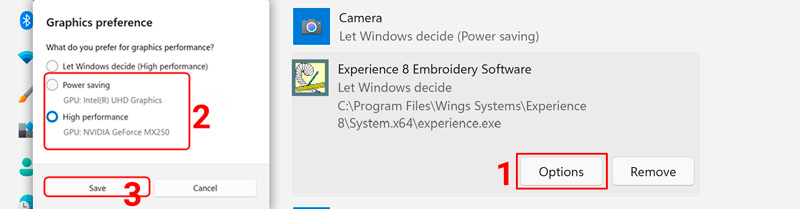
- Power saving – Typically your integrated graphics card.
- High performance – The more powerful NVIDIA/AMD graphics card.
- Select High performance (the NVIDIA /AMD card) to ensure eXPerience uses the NVIDIA/AMD graphics for better performance.
- Click Save to apply the changes.
Step 4: Test eXPerience
- Start eXPerience and check if the software runs smoothly with the new settings.
- If the software still experiences issues, consider reinstalling eXPerience to ensure all components are properly installed.
Additional Help
If you encounter any errors during the re-installation or if the software continues to have issues after setting it to use the NVIDIA/AMD card, please contact support for further assistance.
eXPerience Facebook Page
Happy crafting and don’t forget to share your creations with us in the
eXPerience Facebook Page!








