
How to Master Satin Serial Outlines in eXPerience 8 Embroidery Software
Satin Serial is a versatile outline type in eXPerience 8 embroidery software designed to give a consistent, high-quality satin look to any line design. Unlike standard satin stitches that vary based on the shape, Satin Serial maintains a constant width, making it incredibly easy to edit—just like editing a standard vector line.
It is the perfect tool for outlining appliqué shapes or creating uniform, professional-looking borders. Below is a step-by-step guide to applying and customizing Satin Serial outlines in your projects.
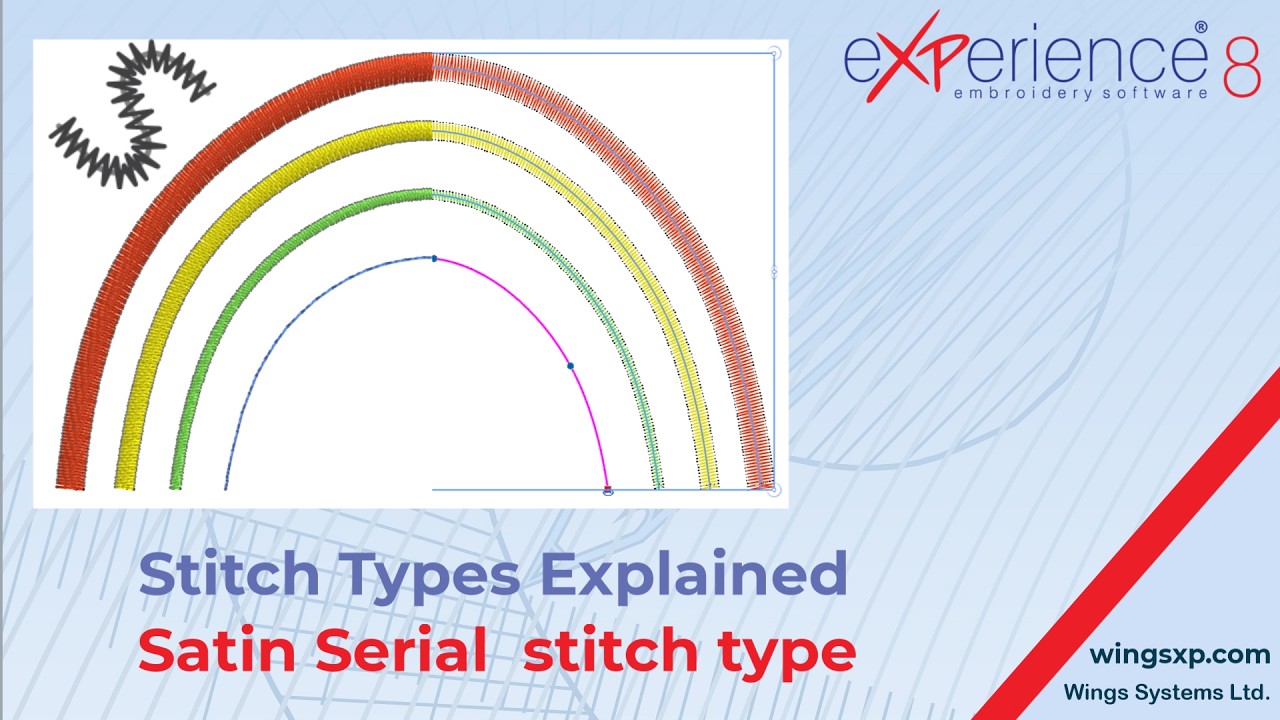
Step 1: Applying the Satin Serial Outline
There are two primary ways to apply a Satin Serial outline to your design:
- Method A (Existing Objects): Select a previously digitized part on your workspace, then navigate to the properties panel and change the outline type to Satin Serial.
- Method B (New Objects): Select the Satin Serial tool first from your toolbar, and then digitize the line or shape you wish to create.
Tip: Because Satin Serial acts like a standard line, you can easily reshape it at any time by adjusting its nodes without having to redraw the entire border.
Step 2: Customizing Basic Shape Properties
Once applied, you can customize the look and placement of your outline using the properties panel.
- Width: Increase or decrease the outline width to make your satin bar wider or thinner.
- Offset: Shift the satin line inside or outside the digitized shape.
- Positive values: Push the outline away. For example, add a 1mm offset to avoid shrinking caused by a dense object beneath it, or a 3mm offset to intentionally leave empty space between the object and the border.
- Negative values: Pull the outline inside the shape in the opposite direction.
Step 3: Adjusting Underlay, Density, and Compensation
Proper stabilization and stitch density are crucial for high-quality embroidery. eXPerience 8 will automatically adjust these based on the fabric profile you select, but you can also tune them manually.
- Density: Controls the spacing between stitches.
- Lower values: Places stitches closer together for tighter, fuller coverage.
- Higher values: Spreads stitches further apart for lighter coverage, which is ideal for delicate or stretchy fabrics to prevent puckering.
- Compensation: Corrects the natural pull and distortion of fabric during the embroidery process. Increasing this value will slightly widen the embroidered satin bar to ensure it stitches out at the intended size.
- Underlay: These are the stabilizing base stitches placed beneath the satin bar.
- Click the dropdown list to choose from standard underlay patterns manually, or leave it on automatic.
Pro Tip for 3D Puff Embroidery: eXPerience 8 includes special underlay types labeled 3D-1 to 3D-5. These are designed specifically to create raised, dimensional embroidery over foam. Types 3D-2 and 3D-3 generally produce the most reliable, excellent results for standard puff designs!
Step 4: Applying Decorative Patterns
While standard Satin Serial stitches are solid zig-zags, you can apply patterns to extra-wide satin bars to create highly decorative borders.
- Navigate to the Patterns area and select a pattern by clicking on it. The software alters the needle penetration points inside the satin bar to create the chosen design.
- Pattern Type: Controls how the pattern repeats along the satin bar.
- Length: Sets the specific length of the pattern repeat (Note: The minimum length is 2 mm; reducing it below this will not visually change the result). The software will repeat the pattern as many times as possible while keeping spacing consistent.
- Fit 1-9: Dictates exactly how many times the pattern will repeat across the fill.
Step 5: Creating Textured Edges with the Random Property
If you are digitizing elements like animal fur, grass, or ragged patches, the Random property breaks up the clean, straight edge of the satin bar.
- Set a percentage value between 0% and 90%. The higher the percentage, the deeper and more erratic the jagged spikes will be.
- Choose the Random Side to control the effect:
- Side A: Spikes appear on one specific side; the other remains perfectly smooth.
- Side B: Spikes appear only on the opposite side.
- Symmetric: The stitch length stays constant, but the entire stitch shifts randomly side to side.
- Both: Stitches go randomly to both sides, varying both in length and direction.
Step 6: Perfecting Stitch Quality (Corners, Slopes, and Splits)
eXPerience 8 offers several technical tools to ensure smooth stitch-outs around corners and over long distances.
- Generate As: Choose how the thread behaves. Satin alternates a parallel stitch with a sloped one. Zig-Zag slants both stitches in opposite directions.
- Corners: Enable this to force the software to generate sharper, cleaner angles when the satin bar changes direction. You can also toggle Handmade Corners for a unique, crafted look.
- Add Short/Long: When navigating tight curves or wide sections, enable this feature. It replaces longer stitches with shorter ones on the inside of curves to prevent dense thread build-up without significantly altering the stitch count.
- Half-pitch Compensation: Ideal for very small satin objects; it begins placing stitches at a distance equal to half the thread’s thickness for extreme precision.
- Split Long Stitches: Automatically divides any satin stitch longer than 6.5 mm to prevent the threads from snagging or sagging. The software randomizes the needle penetration point in the middle so the split remains virtually invisible.
Step 7: Securing Your Embroidery (Fixing and Locking)
Finally, ensure your machine starts and stops securely to prevent unraveling.
- Fixing (Start) and Locking (End) Stitches: By default, these are set to Auto. The software will intelligently decide if securing stitches are needed based on density, object type, and sequence.
- Set to Always to force the machine to drop fixing stitches at the beginning of the object.
- Set to Never to omit fixing stitches entirely, which is useful when you want a “soft start” or are manually tying off threads.
eXPerience Facebook Page
Happy crafting and don’t forget to share your creations with us in the
eXPerience Facebook Page!








