
How to Create Custom Satin Fill Patterns with Vector Outline Tool
Welcome to the eXPerience 8 embroidery software knowledge base! In this tutorial, we will explore the Vector outline tool—a unique feature designed to help you create stunning, complex textures on large filled areas without compromising stitch stability.
A Vector outline acts like a piece of “invisible” artwork. On its own, it features no actual stitches. However, when you place a Vector outline on top of an existing Satin or Step fill object, it instantly converts into needle penetration points, creating beautifully defined divisions and custom patterns.
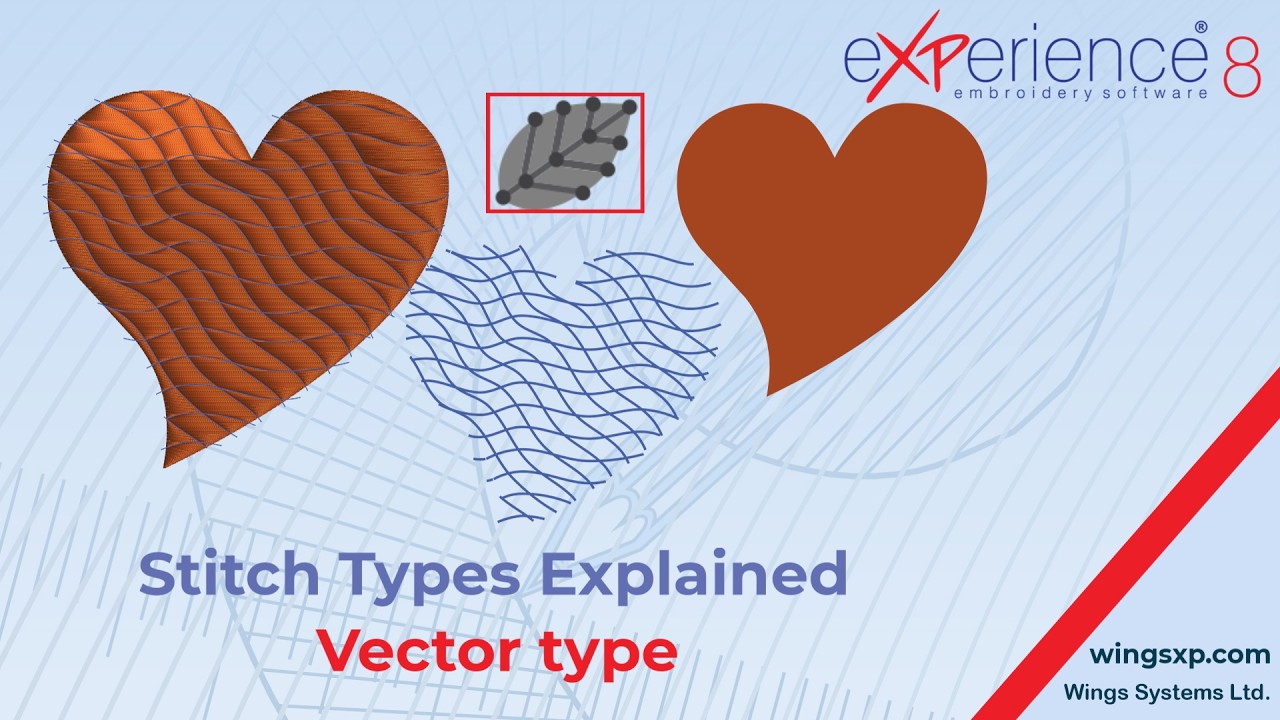
Here is your step-by-step guide to mastering the Vector outline tool in eXPerience 8.
Step 1: Create or Select Your Base Object
Before using a Vector outline, you need an underlying shape to accept the pattern.
- Open your design in eXPerience 8.
- Select or draw a large shape (for example, a leaf or a geometric design).
- Set this base object’s fill type to either Satin or Step fill.
Step 2: Draw Your Design Elements
Next, you will draw the shapes or lines that will form your new pattern.
- Use the Freehand tool or any shape tool to draw lines or outlines directly over your base object.
- Don’t worry if it looks like a standard line at first—we will convert it in the next step.
Step 3: Convert the Shape to a Vector Outline
- Select the newly drawn outline/shape.
- Navigate to the Object Properties panel and change the outline type to Vector.
💡 What to Expect: Once converted, you will notice the stitches disappear from the line itself. It will look like a clean vector artwork object on your screen.
Step 4: Position and Preview the Pattern Effect
- Drag or position your new Vector outline directly over the base Satin or Step object.
- Watch the magic happen: The software automatically calculates the intersection and forces stitch penetration points along your vector lines. Your large base shape is now dynamically divided into distinct, beautifully textured parts.
Advanced Techniques & Customizations
Utilizing the “Form Fill” Option
By default, applying a Vector outline restricts stitches strictly to the boundary of the vector shape. However, you can toggle how the software fills these spaces.
- Select your Vector object and look for the Form Fill option in the properties menu.
- Form Fill Disabled (Default): Stitches only appear on the boundary line of the vector shape.
- Form Fill Enabled: The entire object fills normally with standard stitches, except for the area inside the vector shape, which automatically converts into a smooth satin look.
Creating Unique Textures with Array Fill & Clone Editing
Want to take your digitizing to the next level? You can use Vector outlines to create massive, intricate geometric patterns.
- Create your basic Vector shape.
- Apply the Array Fill tool to duplicate the shape systematically across an entire area.
- Use Clone Editing to modify one instance of the vector shape; all linked duplicates will update instantly, allowing you to iterate and preview complex pattern variations seamlessly.
⚠️ Critical Quality Control Tip: Watch Your Stitch Lengths! Because the Vector tool creates a smooth “satin look” across potentially large areas, keep a close eye on your maximum stitch length settings in eXPerience 8. If a vector division causes a stitch span to become too wide, the embroidery machine may interpret it as a jump stitch and trigger an automatic thread trim. Always review your design in the stitch simulator before heading to production!
eXPerience Facebook Page
Happy crafting and don’t forget to share your creations with us in the
eXPerience Facebook Page!








