How to Use the Namedrop Tool
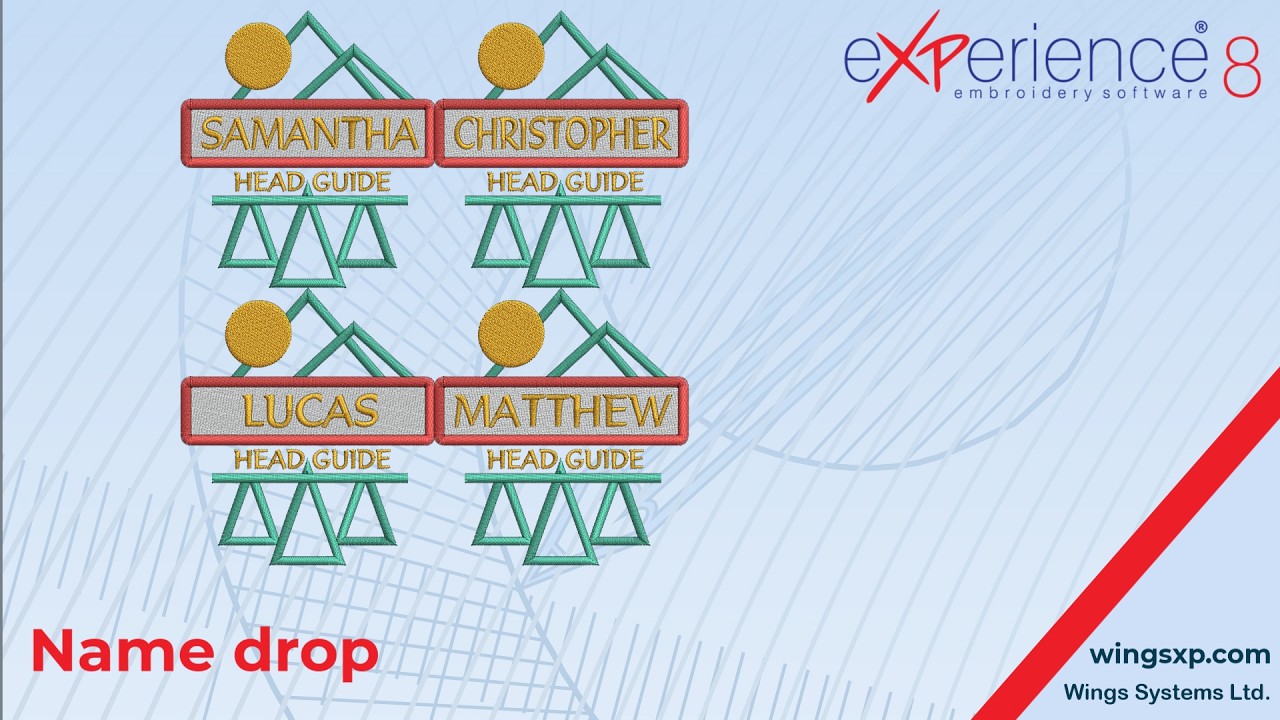
The Namedrop tool in eXPerience 8 automates the production of personalized items such as team uniforms, corporate wear, and name tags. Instead of manually retyping names and creating separate files one by one, Namedrop allows you to batch-generate multiple variations of an embroidery design using a single name list.
Step 1: Open the Namedrop Tool
- Open your completed base embroidery design in eXPerience 8.
- Select the placeholder text object that you want to replace with individual names.
- Launch the tool using either of the following methods:
- Right-Click Method: Right-click the selected text object and choose Namedrop from the context menu.
- Menu Bar Method: Navigate to the top menu and select Tools > Namedrop.
Step 2: Build or Load Your Name List
Once the Namedrop dialog opens, populate the list of names you wish to embroider:
- Typing Names: Type each name directly into the input area. Press Enter after each name to move to the next line.Note: Each line break is automatically recognized by the software as a separate name entry.
- Pasting from External Software: If you have a roster from a spreadsheet (e.g., Excel) or text document, copy the column of names and paste (Ctrl + V) directly into the list.
- Deleting Names: Click on any unwanted entry and press the Delete key.
- Saving Lists: Click the Save option to store the active list as a file on your computer for recurring orders or annual team rosters.
- Loading Saved Lists: Click Load to import previously saved name lists directly into your current project.
Tip: Keep an organized folder on your computer for client rosters. Saving these lists allows you to quickly re-run individual replacements if a client orders additional garments later.
Step 3: Choose Your Output Method
Depending on your production setup, choose whether to output each personalized design into its own file or lay them out together in a single hoop.
Option A: Generate Separate Design Files
Use this option when embroidering items one at a time on separate garments.
- Check the box for Separate designs.
- Enable Copy other object also to ensure logos, borders, and background embroidery elements from your base file accompany each new name.
- Click OK. The software will generate a dedicated file for each name, opening each variation in a new tab ready for export or machine transfer.
Option B: Create an Array (Multi-Item Hooping)
Use this option when batch-embroidering badges, patches, or ribbons within a large hoop or multi-head setup.
- Check the box for Create Array.
- Configure your Array properties:
- Rows & Columns: Define how many items to place horizontally and vertically.
- Horizontal & Vertical Spacing: Enter the required distance between each design to allow proper cutting margins or hoop clearance.
- Monitor the Pages counter:
- If your name count exceeds the available cells defined by your rows and columns, the Pages value increases.
- Overflow names will be stacked onto subsequent virtual layers on top of the original array.
- Adjust your row and column numbers until the array cleanly accommodates your full roster within your stitch area.
Tip: When using the Array feature, always double-check your machine’s maximum hoop boundary. Ensure the combined width and height of the grid—including spacing—fits safely inside your hoop limits.
Step 4: Configure Text Alignment
Names vary significantly in length. To control how long or short names fit into the designated design area, set your Text alignment preference:
- Stretch: Automatically adjusts font width, height, and letter spacing so every name spans the exact bounding box of the original template text.
- Best for: Standard-sized name badges, ribbons, or banners with fixed boundaries.
- Center: Preserves the original font size and proportions, aligning each name horizontally in the center of the text area.
- Best for: Left-chest apparel, monograms, and team logos where uniform stitch density and consistent letter height are preferred.
Tip: If choosing Center, verify that your longest name does not collide with neighboring logos or border frames. If it does, use Stretch or slightly reduce the baseline text size before running Namedrop.
eXPerience Facebook Page
Happy crafting and don’t forget to share your creations with us in the
eXPerience Facebook Page!